Attaching a policy template to an endpoint
On the Endpoint Policies page, attach one or more Enabled policy templates (created on the Policy Templates page) to your API endpoint (resource endpoint).
Before you begin
Before attaching a policy template to a resource endpoint, ensure you have created a policy template and enabled it on the Policy Templates list page.
Procedure
-
On the Cloud API Management dashboard Get Started page, click API Definitions.
Or
Navigate to Design > APIs. This opens the Manage your APIs with API Definitions page.
-
In the Name column, click the API definition name link to open it. This opens the Endpoints page.
If no endpoints exist yet, this page shows an empty state with a Create your first Resource Endpoint (+) button. If at least one endpoint exists, it shows the endpoint list page instead.
-
In the Name column, click the endpoint name link for which you want to attach a policy template to open it. This opens the Methods page.
-
Navigate to Endpoint Policies.
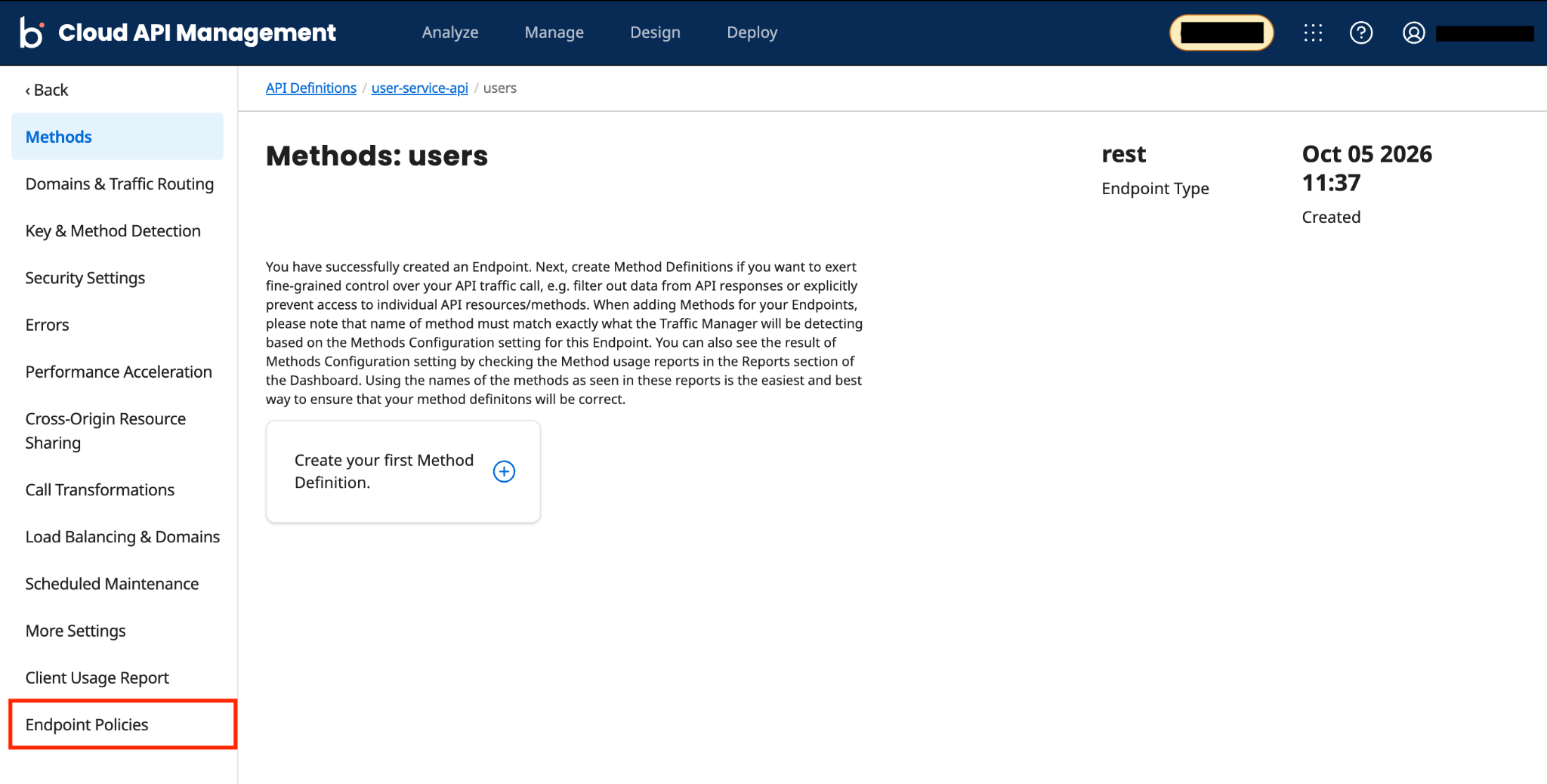
If no policy template is attached to the endpoint, this page shows an empty state with an Attach Policy Template button. If at least one policy template is attached to the endpoint, it shows the attached policy template instead.
-
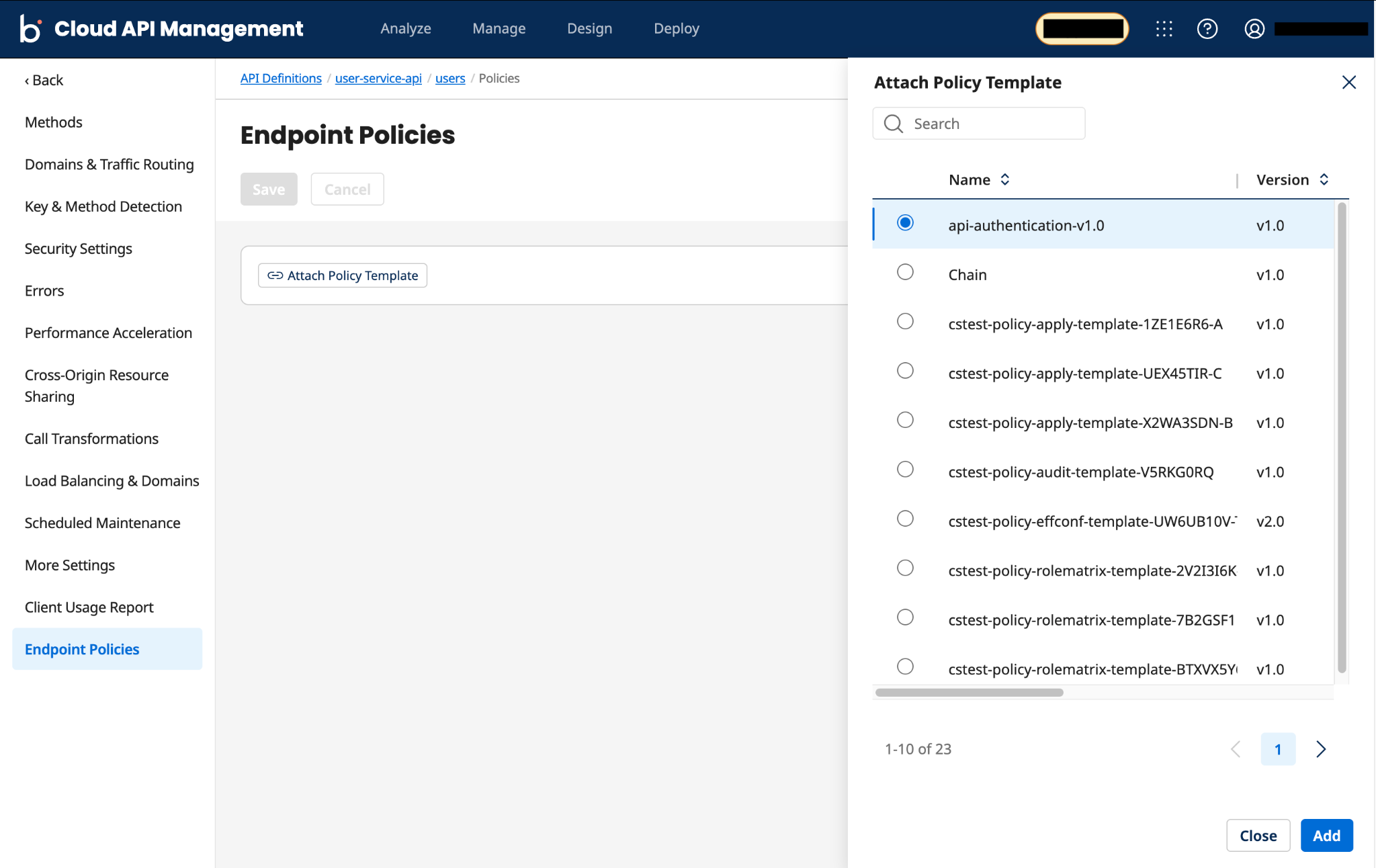
Click Attach Policy Template. This opens the Attach Policy Template side panel, which displays only the Enabled policy templates in Control Center.
In the Attach Policy Template side panel:
- You can search for an Enabled policy template (created on the Policy Templates page) using the searchable attributes. Refer to Searching and filtering in Control Center for more information.
- You can sort the columns in ascending or descending order.
- You can view the entire table by dragging the edge of the side panel to widen it.
-
Search for a policy template by name or select one policy template from the Names list, and then click Add. The selected policy template gets Attached. Your endpoint now uses the attached policy template definition rules.
Chaining policy limit across templatesControl Center enforces a one-chaining-policy limit across multiple policy templates attached at the endpoint level on the Endpoint Policies page. You can add only one chaining policy when multiple templates are attached at the endpoint level. If the attached templates together contain more than one chaining policy (whether the same or different), the system rejects the action.
On the Endpoint Policies page:
-
You can attach multiple policy templates to the same endpoint. If the endpoint already has a policy template, Control Center appends the new policy template after the existing one.
Duplicate policies across templatesWhen multiple templates contain the same policy, Traffic Manager executes only the first occurrence based on attachment order.
-
You can change the sequence of attached policy templates by using the Move up and Move down arrow options. Policy execution takes place in the order you added the Attached or Overridden policy templates. To learn more, refer to Policy execution behavior.
-
If your Attached or Overridden policy template has policies added during template creation, the Pre-Processing and Post-Processing panels display them. For Overridden policy templates, you can expand or collapse an individual policy card to view its configured field values. Use Expand All or Collapse All to toggle all policies in these panels at once.
-
-
-
Click Save.
After you attach a policy template to an endpoint, the Usage column on the Policy Templates list page displays a View link. This indicates that an endpoint is attached to the policy template. Click the View link to see the number of endpoints using the template and whether the template was overridden for another endpoint.
Next steps
After attaching a policy template, manage other options for an Attached or Overridden policy template, such as viewing, overriding, replacing, or deleting it. Refer to Managing existing attached policy templates for more information.
